This is a list of 10 things every first time Mac owner, particularly Mac Mini owner, should know about their new computer and operating system. This article should answer some burning questions, enlighten you about some features you did not know about OS X and just all around be helpful.
256 Won’t Cut It
Upgrading to 512MB of DDR RAM is suggested and will get you off to using a Mac on the right foot while an upgrade to 1GB will really unleash some speed. More RAM means you can have more applications open at the same time and decreased boot times. I recommend 1GB for photoshop or other intensive application users. Any memory rated DDR333 or higher will suffice. If you can find one with a CAS latency of 2 or 2.5, get that over one with a CAS of 3. If you’re not sure to go Crucial’s Mac section should be just what the doctor ordered.
 No Need to Defrag
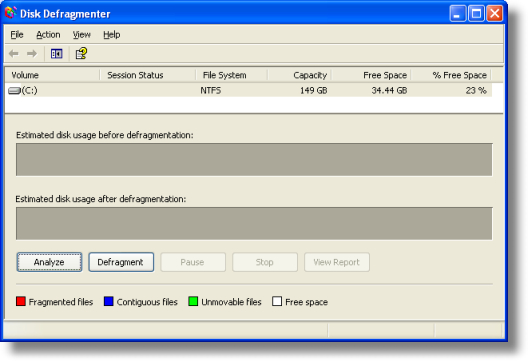
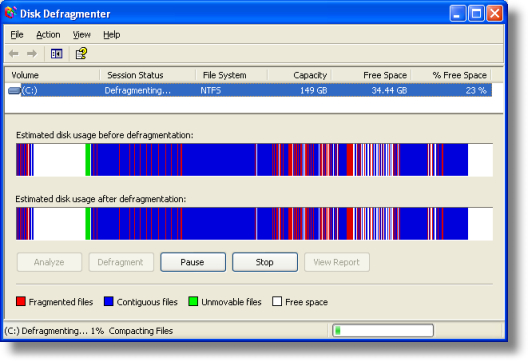
Whenever a PC is acting sluggish the first thing you hear people ask is “Have you tried defragging the hard drive?” However, this is not the case with Macs. Based on the proven and reliable Unix architecture with a Mac OS Extended Journaled file system, you don’t have to worry about defragmenting your hard drive to boost access/reading/writing times; it is done for you automatically. (Technically, it is not being defragged but things are just put in their place with journaling) Whenever your mac detects that it is fairly idle or you attempt to use a heavily fragmented file, it will start fixing up your filesystem. This might explain some noises coming from your computer in the middle of the night (assuming you left it on).
No Need to Defrag
Whenever a PC is acting sluggish the first thing you hear people ask is “Have you tried defragging the hard drive?” However, this is not the case with Macs. Based on the proven and reliable Unix architecture with a Mac OS Extended Journaled file system, you don’t have to worry about defragmenting your hard drive to boost access/reading/writing times; it is done for you automatically. (Technically, it is not being defragged but things are just put in their place with journaling) Whenever your mac detects that it is fairly idle or you attempt to use a heavily fragmented file, it will start fixing up your filesystem. This might explain some noises coming from your computer in the middle of the night (assuming you left it on).
 Closing Unresponsive Applications
The Mac equivalent of CTRL-ALT-DEL to bring up a system tasks profiler for force quitting unresponsive tasks is CMD-OPTION-ESC (or Windows-ALT-ESC if you are using a PC keyboard). Just select the frozen application and hit Force Quit. If a program is completely frozen, it will appear in red text.
Closing Unresponsive Applications
The Mac equivalent of CTRL-ALT-DEL to bring up a system tasks profiler for force quitting unresponsive tasks is CMD-OPTION-ESC (or Windows-ALT-ESC if you are using a PC keyboard). Just select the frozen application and hit Force Quit. If a program is completely frozen, it will appear in red text.
 Where Did That Window Go?
You will quickly learn that when you minimize your applications, they go to the dock. Specifically the items to the right of the bar in the dock menu are open finder windows or applications. This is similar to the area where minimized applications go in the windows task bar. Also, if a finder window is not minimized, but behind another open window you can bring it up by clicking on the finder icon in the dock.
Where Did That Window Go?
You will quickly learn that when you minimize your applications, they go to the dock. Specifically the items to the right of the bar in the dock menu are open finder windows or applications. This is similar to the area where minimized applications go in the windows task bar. Also, if a finder window is not minimized, but behind another open window you can bring it up by clicking on the finder icon in the dock.
 Updates
You will want to occasionally check for updates from Apple by accessing the Apple menu and clicking on Software Update. I recommend heading over to Apple > System Preferences > Software Update and setting your Mac to automatically check for software updates weekly and download important updates in the background.
Updates
You will want to occasionally check for updates from Apple by accessing the Apple menu and clicking on Software Update. I recommend heading over to Apple > System Preferences > Software Update and setting your Mac to automatically check for software updates weekly and download important updates in the background.
 System Profiler
The System Profiler, accessible via Apple > About This Mac > More Info, is the one stop shop for finding out anything about your Mac. Similar to Windows XP’s Administrative tasks and Device Manager, the System Profiler is easy to navigate and offers you a plethora of system information from application versions to the MAC address of your ethernet card.
System Profiler
The System Profiler, accessible via Apple > About This Mac > More Info, is the one stop shop for finding out anything about your Mac. Similar to Windows XP’s Administrative tasks and Device Manager, the System Profiler is easy to navigate and offers you a plethora of system information from application versions to the MAC address of your ethernet card.
 Expose
Apple introduced Expose to OS X to make your life easier, so go ahead and use it to your heart’s content. Go to Apple > System Preferences > Dashboard & Expose and play with some of the settings to make those menial tasks more convienient to execute. My favorite Expose tip is setting an active corner to open up Dashboard. One simple mouse movement and Dashboard launches.
Expose
Apple introduced Expose to OS X to make your life easier, so go ahead and use it to your heart’s content. Go to Apple > System Preferences > Dashboard & Expose and play with some of the settings to make those menial tasks more convienient to execute. My favorite Expose tip is setting an active corner to open up Dashboard. One simple mouse movement and Dashboard launches.
 Login Items
A major annoyance with some applications is that upon installation they will automatically set themselves to run when you boot your computer. For Windows XP, you would usually run msconfig to remedy this problem. However in OS X you can access a similar menu in Apple > System Preferences > Accounts > Login Items. From here you can add, remove and hide items that launch when you login.
Login Items
A major annoyance with some applications is that upon installation they will automatically set themselves to run when you boot your computer. For Windows XP, you would usually run msconfig to remedy this problem. However in OS X you can access a similar menu in Apple > System Preferences > Accounts > Login Items. From here you can add, remove and hide items that launch when you login.
 Eject Optical Media
This is probably only a problem for those that are using non-Apple keyboards, that lack a CD Eject key. Press and Hold F12 for 2 seconds to eject any CD or DVD. An alternate method is dragging the CD icon on the desktop to the trash. This will not delete it. You can also use the Command-E keystroke.
Eject Optical Media
This is probably only a problem for those that are using non-Apple keyboards, that lack a CD Eject key. Press and Hold F12 for 2 seconds to eject any CD or DVD. An alternate method is dragging the CD icon on the desktop to the trash. This will not delete it. You can also use the Command-E keystroke.
 Keyboard Shortcuts
If saving time and being productive is the name of the game, then keyboard shortcuts are for you. The next time you are browsing around the menus of your favorite applications, take a glance at the right side of the menu to see if you find any shortcuts that can help you out. Here are a few to get you started.
Command-? Mac Help
Command-A Select All
Command-C Copy
Command-D Duplicates current item
Command-E Ejects selected volume, media, or server
Command-F Find
Command-H Hide current application
Command-I Opens Get Info dialog for selected item
Command-J Toggles View Options Open & Closed
Command-K Connect to server
Command-L Creates Alias for selected item
Command-M Minimize a Finder-folder to Dock
Command-Option-M Save as above but minimizes all open Finder-folders
Command-N Opens up new Finder window
Command-O Opens selected item
Command-Q Quits active application
Command-V Paste
Command-W Closes Finder-folder window
Command-Option-W Same as above but closes all Finder-folders
Command-X Cut
Command-Z Undo
Command-Del Moves selected item to Trash
Command-Shift-A Opens the applications folder
Command-Shift-N Creates a new folder in the selected workspace
Command-Shift-Del Empty Trash
Command-Tab Rotate through open applications and switch to highlighted app
Command-~ Same as above but only flips through open windows in the selected application
Keyboard Shortcuts
If saving time and being productive is the name of the game, then keyboard shortcuts are for you. The next time you are browsing around the menus of your favorite applications, take a glance at the right side of the menu to see if you find any shortcuts that can help you out. Here are a few to get you started.
Command-? Mac Help
Command-A Select All
Command-C Copy
Command-D Duplicates current item
Command-E Ejects selected volume, media, or server
Command-F Find
Command-H Hide current application
Command-I Opens Get Info dialog for selected item
Command-J Toggles View Options Open & Closed
Command-K Connect to server
Command-L Creates Alias for selected item
Command-M Minimize a Finder-folder to Dock
Command-Option-M Save as above but minimizes all open Finder-folders
Command-N Opens up new Finder window
Command-O Opens selected item
Command-Q Quits active application
Command-V Paste
Command-W Closes Finder-folder window
Command-Option-W Same as above but closes all Finder-folders
Command-X Cut
Command-Z Undo
Command-Del Moves selected item to Trash
Command-Shift-A Opens the applications folder
Command-Shift-N Creates a new folder in the selected workspace
Command-Shift-Del Empty Trash
Command-Tab Rotate through open applications and switch to highlighted app
Command-~ Same as above but only flips through open windows in the selected application